"TOWARDS SUSTAINABLE FUTURE"

XP-GTR1500LABX
XP-GTR1500LABX
Single Door Access Control Reader with Keypad, LCD and Built-In Controller
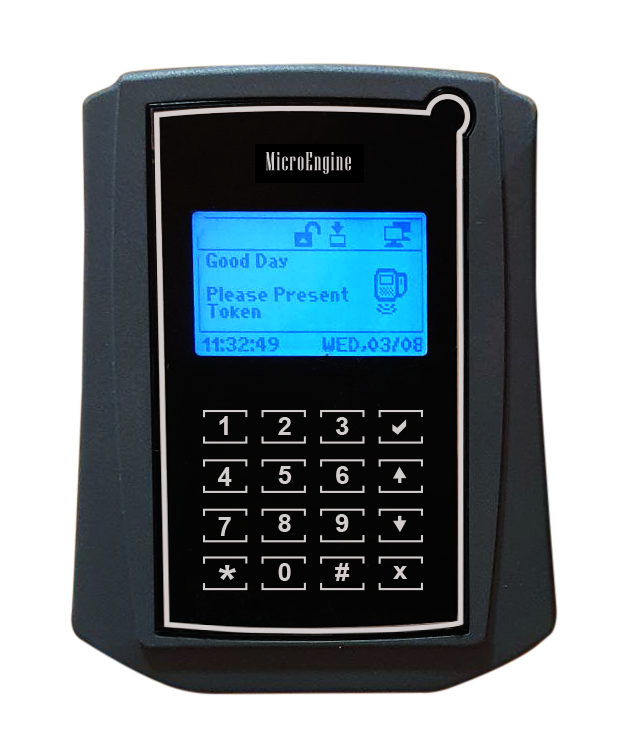

MicroEngine XP-GTR1500LABX is a tightly integrated controller with built in Reader that enables and stylish design with touch sense keypad, it to become a totally independent solution. It has the ability to be configured through the built-in user interfaces or through the software application. When operating in the controller mode, the unit can be programmed to operate in different modes to suit different applications like door access, time attendance. In Reader mode, the unit will act as a dedicated entry reader that is connected to a Reader interface. Auxiliary reader inputs enable ease of connecting exit readers.
Product Features :
- Software Control
- Diagnostic
- Wiegand Interface
- External Relay Unit
- Firmware Upgrade
- Device Discovery
- Programming Access
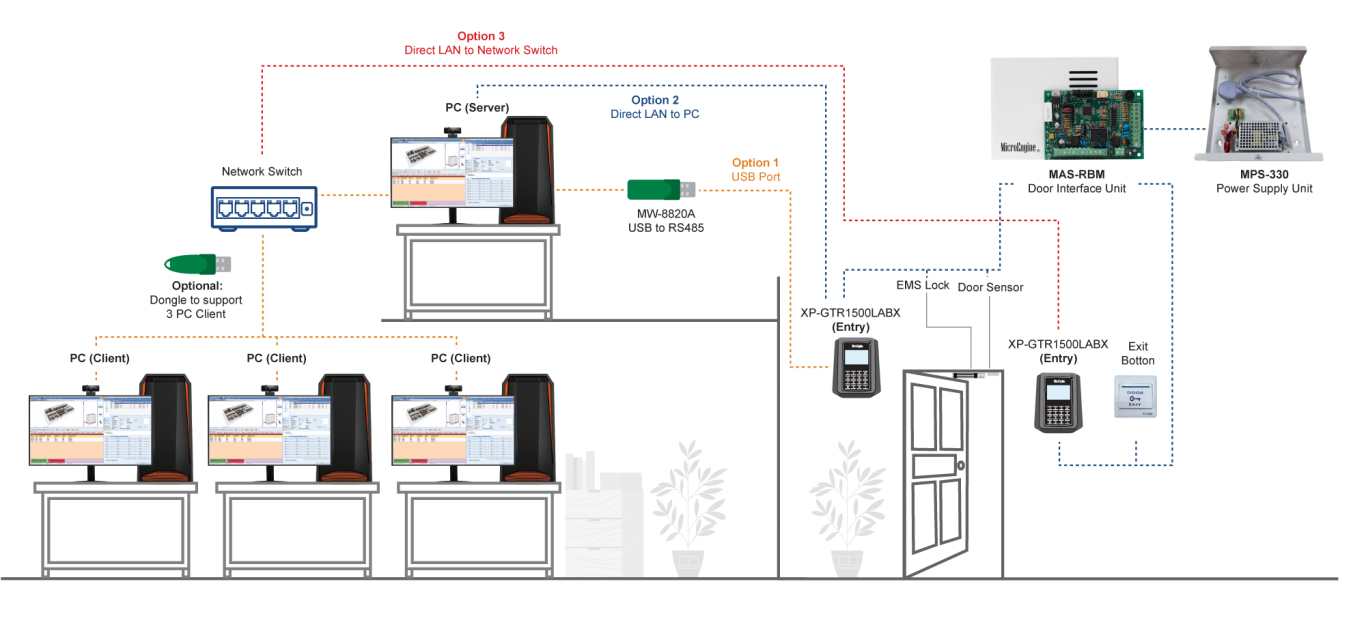
Product SpecificationConfiguration DiagramDocumentationFAQ
| No | Item | Features |
| 1. | Input Voltage | 12VDC |
| 2. | Current Consumption | 250mA |
| 3. | Processor | 32-bits RISC |
| 4. | Clock Speed | 80 MHz |
| 5. | Data Flash Memory | 32 MB |
| 6. | RAM | 512 KB |
| 7. | Built-in Real Time Clock with Battery |
Yes |
| 8. | Watchdog Timer | Yes |
| 9. | Communication Ports | RS485 / LAN |
| 10. | Supported Interface | MAS-RBU |
| 11. | Reader Input | ABA, Track 2, Wiegand 26 |
| 12. | Display | 128 x 64 graphic display with backlight |
| 13. | Keypad | Touch Sense Keypad with backlight |
| 14. | Operation Mode | Door Access mode, Time Attendance Mode |
| 15. | Build-in Card Reader | Yes – MIFARE Card with MIFARE Sector Reading |
| 16. | Card Holder Size | 1,500 User |
| 17. | Transaction Record | 50,000 |
| 18. | Anti-Passback | Yes (Local) |
| 19. | Dimension | 152 mm (H) x 122 mm (W) x 32 mm (D) |
| No | Documentation |
| 1. |  DATASHEET PRODUCT : XP-GTR1500LABX DATASHEET PRODUCT : XP-GTR1500LABX |
FAQ
Video Tutorials
XP-GT/GTR Setup Guide (Network Setting)